
Your session expired, so this page stopped updating. Nothing was lost and any running delivery is still going. Sign in to pick up where you left off. Our terms have been updated, so this page stopped updating. Nothing was lost and any running delivery is still going. Review and accept them to pick up where you left off.
Guide
From your GIS data to legal exhibits
Send your parcels and the route, check what we read, and run. This guide shows each step, with the detail folded away until you need it.
Step 1 · Prepare
Two layers are all you need to start.
Send your parcels and the route. Add easements, roads, monuments and a Line List when your job has them, and we draw the exhibits from what you send.
- my_route_delivery.zip
- project.gdb your State Plane zone
- Parcels required
- Centerline required
- Access_Roads, ESMT, WS, ATWS, … optional
- monuments.csv optional
- line_list.csv optional, its own upload
- 1
One file for the map data. A zipped File Geodatabase, zipped shapefiles, or a GeoPackage. Formats
- 2
One coordinate zone, set on every layer: your State Plane zone in US survey feet. Zone
- 3
Name the layers the usual way. Each parcel carries its tract ID. Layers
- 4
Everything else is optional. Include a layer only when the job has it.
- 5
Monuments tie the descriptions down. A field-crew point file works as it is. Monuments
- 6
A Line List, uploaded beside it, fills the deed details on each exhibit. Line List
A typical delivery. Click a number to see its note.
Your layers
Parcels
One polygon per tract, each with its tract ID.
Centerline
The route as designed, through the parcels.
Add when your job has them
- Access RoadsAccess_Roads
- Permanent EasementESMT
- Temporary WorkspaceWS
- Additional Temporary WorkspaceATWS
- Survey PointsSurvey_Points
- Surface SitesSS
- Existing UtilitiesExisting_Utilities
Every layer name we recognise Capitals don't matter
Use any of these names. A layer we do not recognise is not lost: the data check lists it so you can assign it.
| Layer | Names we read | Fields |
|---|---|---|
| Parcels | Parcels parcel training_parcels parcels_input parcel_set parcelset tracts | PARCEL_ID OWNER |
| Centerline | Centerline cl center_line route | — |
| Access Roads | Access_Roads accessroads access roads ar tar par | WIDTH_FT KIND ROAD_NAME WIDTH_SRC |
| Permanent Easement | ESMT easement pe permanent_easement | — |
| Temporary Workspace | WS workspace tws temporary_workspace | — |
| Additional Temporary Workspace | ATWS additional_workspace | — |
| Survey Points | Survey_Points surveypoints points pts monuments mon control control_points | TYPE CAP PARCEL_ID SIZE STATUS TIE_ROLE DESC |
| Surface Sites | SS surface_sites surfacesites surface staging staging_sites stagingsites | — |
| Existing Utilities | Existing_Utilities epl existing_utility existing_lines existing_pipelines existing_pipeline foreign_lines foreign_pipelines | — |
Tract IDs and owner names
Put each tract's ID in a PARCEL_ID field and the owner in an OWNER field. You confirm both before anything runs.
We also find the ID under these names: PARCELID PARCEL_NO PARCELNO PARCEL_NUM PARCEL_NUMBER PARCEL TRACT_ID TRACTID TRACT_NO TRACTNO TRACT_NUM TRACT_NUMBER TRACT
And the owner under these: OWNER_NAME OWNERNAME LAND_OWNER_NAME LAND_OWNER LANDOWNER OWNER_NAME_1
Access roads: permanent and temporary
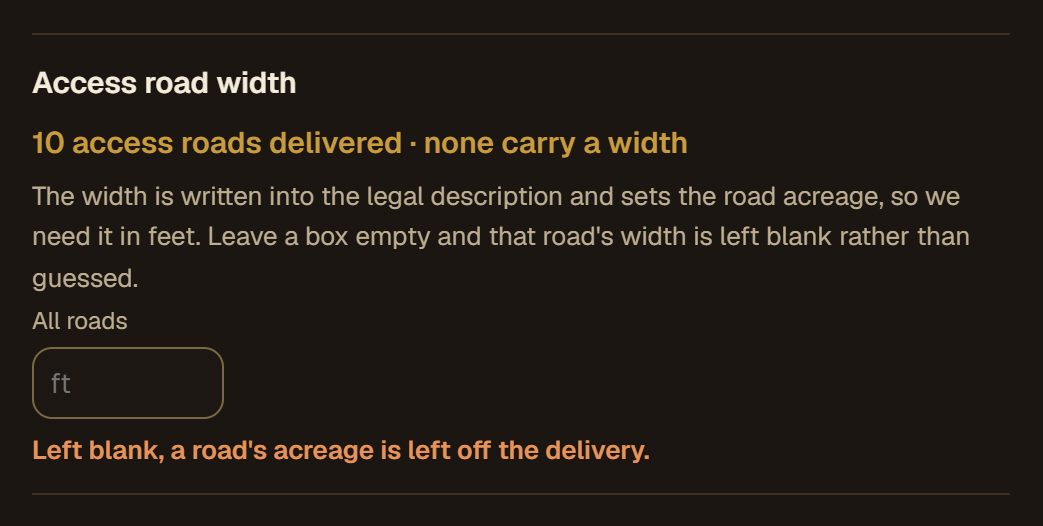
Draw each road down its centerline. Keep permanent and temporary roads as two layers, or one roads layer with a column saying which each road is. You can enter road widths after upload if your data does not carry them.
Pick a format
Zipped File Geodatabase
Zip the whole .gdb folder.
Zipped shapefiles
Keep each .shp, .dbf, .shx and .prj together.
GeoPackage
One .gpkg file, no zip needed.
Up to 200 MB per upload.
Exporting from CAD
Export easements, workspace and additional workspace as closed polygons, not polylines. In Civil 3D, use
MAPEXPORTto SHP with the object type set to Polygon, close every boundary first, and turn on Treat closed polylines as polygons on the Options tab. In Carlson, use Export to SHP with the polygon type.Assign the US survey foot State Plane zone the project is drawn in before exporting (in Civil 3D,
MAPCSASSIGN, e.g.TX83-CFfor Texas Central). Keep the.prjfiles the export writes. Don't copy.prjfiles between layers or substitute one from another source: Esri publishes both a metre and a foot version of each zone, and a mismatched.prjmoves the data on the map.Export every layer in the same zone.
Name each layer as listed above. A parcel, centerline or construction layer with a different name can be assigned to its role on the delivery page after you upload; existing utilities must use one of the names above.
Set your coordinate zone
Use your State Plane zone in US survey feet, the same on every layer. We read it from your data and you confirm it after upload.
We never move your data. The exhibits use your coordinates exactly as delivered, so a layer in a different zone is refused rather than converted.
Shapefiles: keep the .prj
The .prj file is where a shapefile says its zone. Keep it beside each .shp, then check the zone we show after upload, before you run.
Add a Line List (optional)
A spreadsheet saved as .csv, one row per tract. It fills the deed details on each exhibit. Only PARCEL_ID is required; leave blank any column you do not have.
| PARCEL_ID | OWNER | COUNTY | STATE | SURVEY | ABSTRACT | CALLED_ACRES | DEED_DOC | DEED_VOL | DEED_PAGE | RECORDS | TAKING_TYPE | PARENT_TRACT | TAKING_NAME |
|---|---|---|---|---|---|---|---|---|---|---|---|---|---|
| XX-0000-0001 | EXAMPLE OWNER NAME | EXAMPLE | XX | EXAMPLE SURVEY | A-000 | 1.000 | 0000000 | — | — | EXAMPLE RECORDS | — | — | — |
The IDs must match the PARCEL_ID on your parcels. Capitals and spaces don't matter.
What each column is for
| Column | Example | What it is for |
|---|---|---|
PARCEL_ID | XX-0000-0001 | The tract ID, exactly as on your Parcels layer. Required. |
OWNER | EXAMPLE OWNER NAME | Owner of record. |
COUNTY | EXAMPLE | County name. |
STATE | XX | State abbreviation. |
SURVEY | EXAMPLE SURVEY | Survey name. |
ABSTRACT | A-000 | Abstract number. |
CALLED_ACRES | 1.000 | The tract's acreage as called in its deed. |
DEED_DOC | 0000000 | Recording document number. Give this, or the volume and page. |
DEED_VOL | — | Recording volume, when there is no document number. |
DEED_PAGE | — | Recording page, with the volume. |
RECORDS | EXAMPLE RECORDS | The records the deed is recorded in, abbreviated as it should print. |
TAKING_TYPE | — | For a road or site with its own tract number: your code for what it is. |
PARENT_TRACT | — | For that road or site: the tract it lies in. |
TAKING_NAME | — | For that road or site: its name. |
Roads or sites with their own tract number
Add one row for each, filling the last three columns. After upload we ask once what each of your codes means.
Monuments and ties (optional)
Found monuments let each description commence and close on a real corner. Send them as a survey points layer, or as a point file in the zip. Send one or the other, not both.
point, northing, easting, elevation, description
101,10070412.55,3100210.18,0.00,FND 1/2IN IRON ROD
The description prints as written.
P, N, E, Z, CODE, TYPE, CAP?, STAMP, SIZE, REMARKS
1,0.00,0.00,0.00,FOUND_MONUMENT,IRON ROD,WITH CAP,EXAMPLE STAMP,5/8,EXAMPLE REMARK
Read as it is. We list anything we interpreted, for you to check.
Choose a tract's tie yourself: put the monument's point number in the parcel's POC or POT column. Otherwise we pick a recorded corner, then a monument on the tract's lines, then the nearest.
Northing comes before Easting
Point files list Northing first. A file that only fits with the columns swapped is refused, with a message saying so; we never swap them for you.
Start from a template
Empty layers with the right names and fields, a Line List with its columns, and a complete sample delivery to compare against.
Subscribers sign in to download the blank templates.
Step 2 · Submit
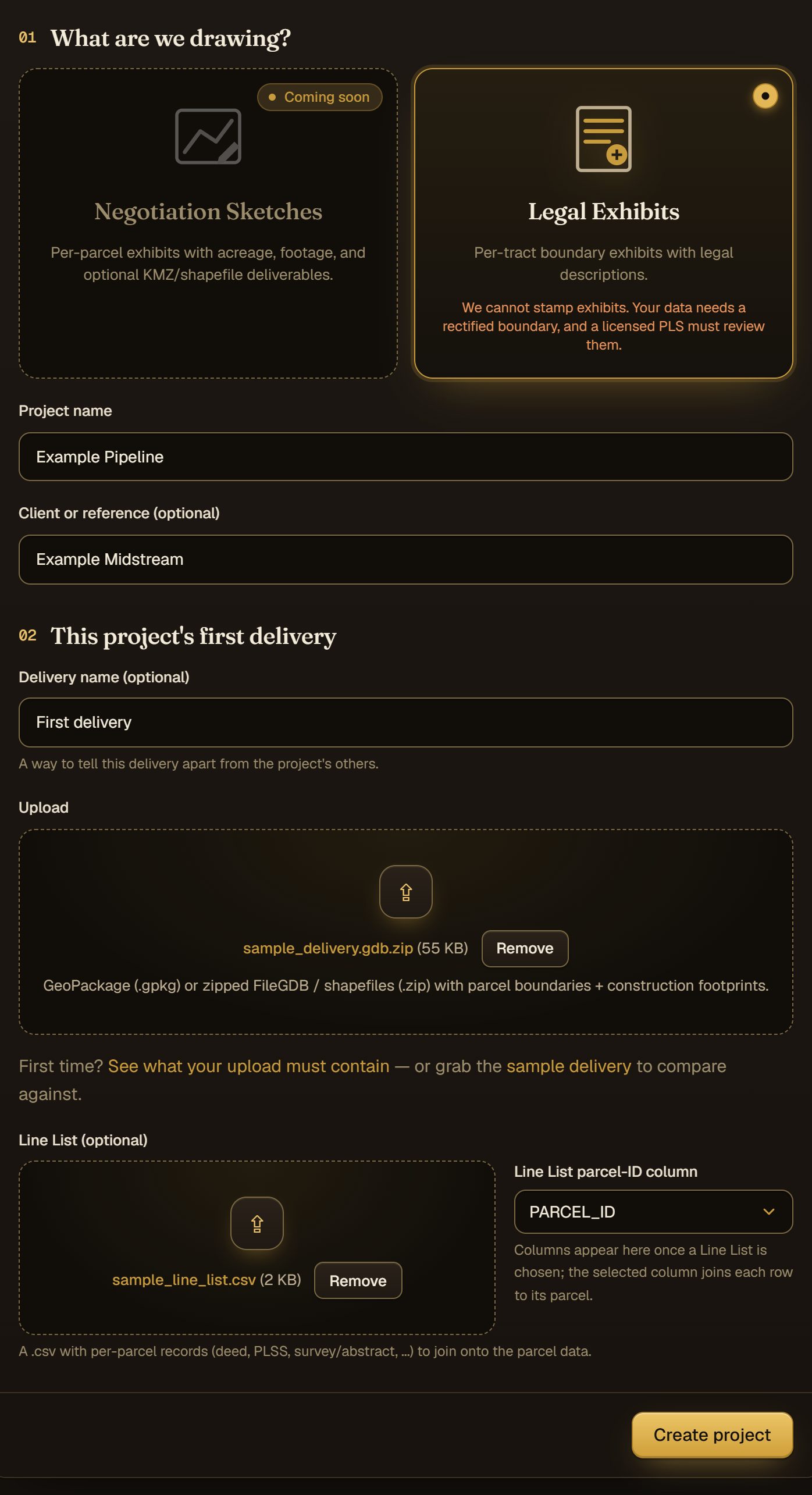
Start a project and upload.
One form: what we are drawing, a name, and your files.
- 1
Choose legal exhibits.
- 2
Name the project after the job. Each upload you add to it later is a new delivery.
- 3
Drop in your zip or GeoPackage.
- 4
Add the Line List as its own file, if you have one.
- 5
The Line List column that holds the tract ID. We choose it for you when we can.
- 6
Create the project. The data check starts straight away.
Step 3 · Review and run
Check what we read, then run.
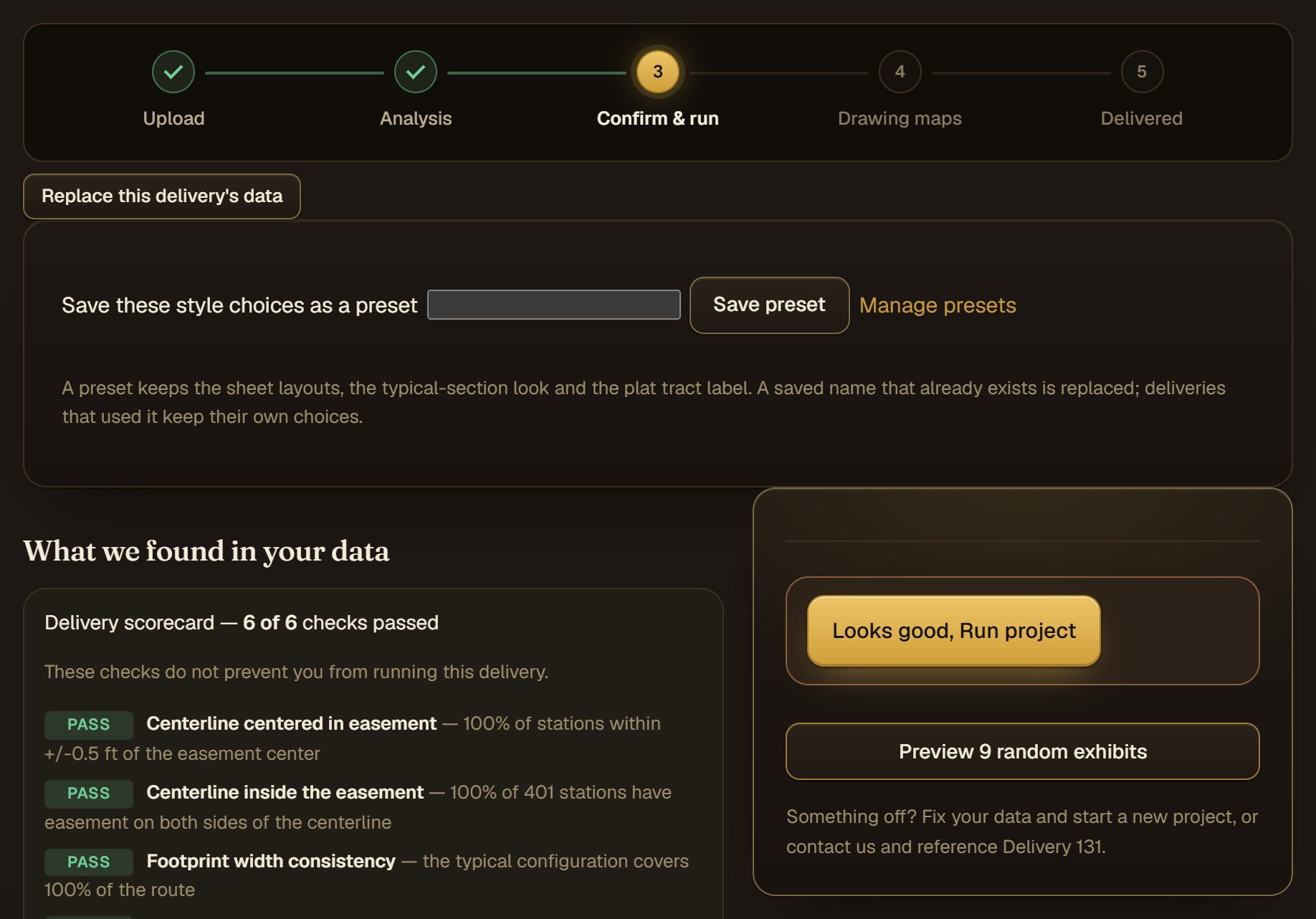
The data check takes a few minutes. When it finishes, each thing we read from your files has its own panel. Most need only a glance.
- 1
Where your delivery is. Nothing is drawn until you run it.
- 2
What the data check read from your files. Start here and work down.
What to check
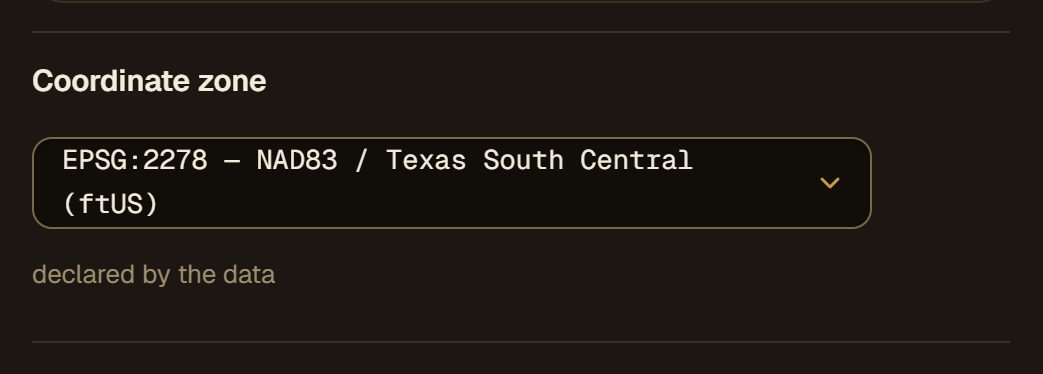
The coordinate zone
- 1
The zone we read. Check it against your source data. Choosing another only labels your data; it never moves it.
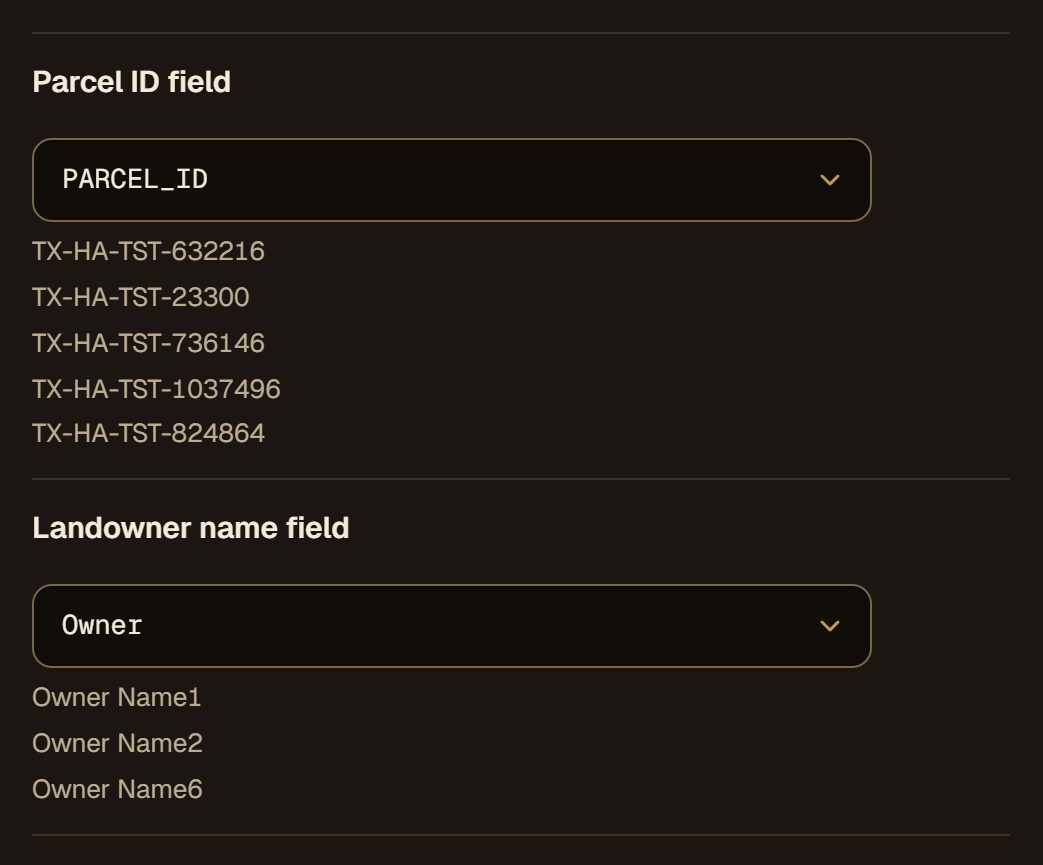
Tract IDs and owners
- 1
The field holding each tract's ID, with sample values. Pick another if it is wrong.
- 2
The field holding the owner's name.
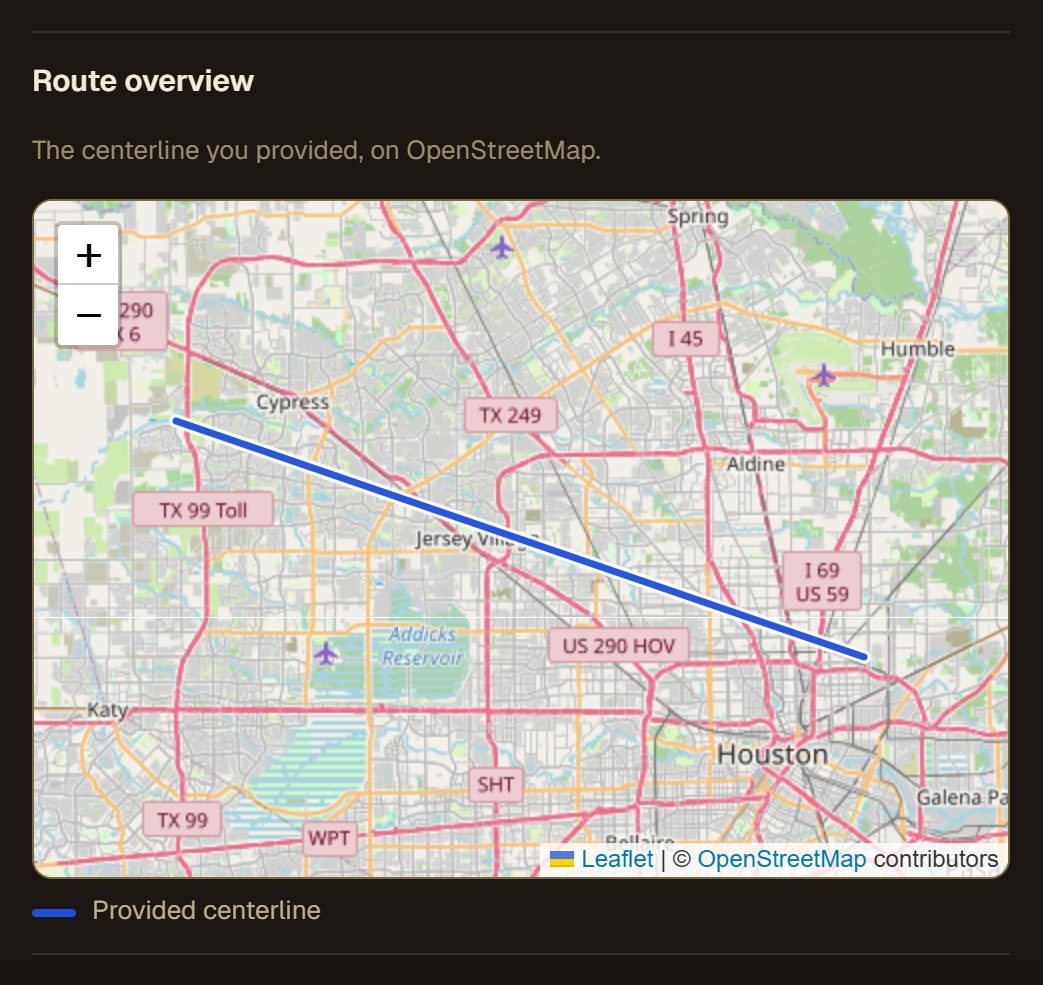
The route
The Line List
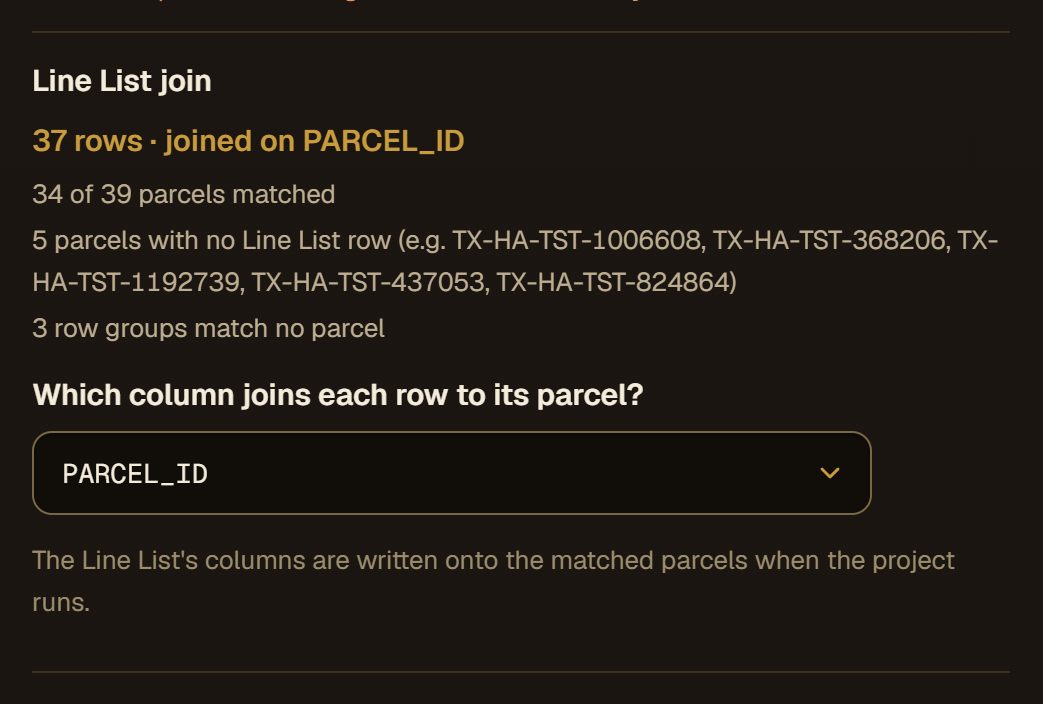
- 1
The Line List column that matches your tracts. The report beside it lists anything that did not match.
Road widths only when asked
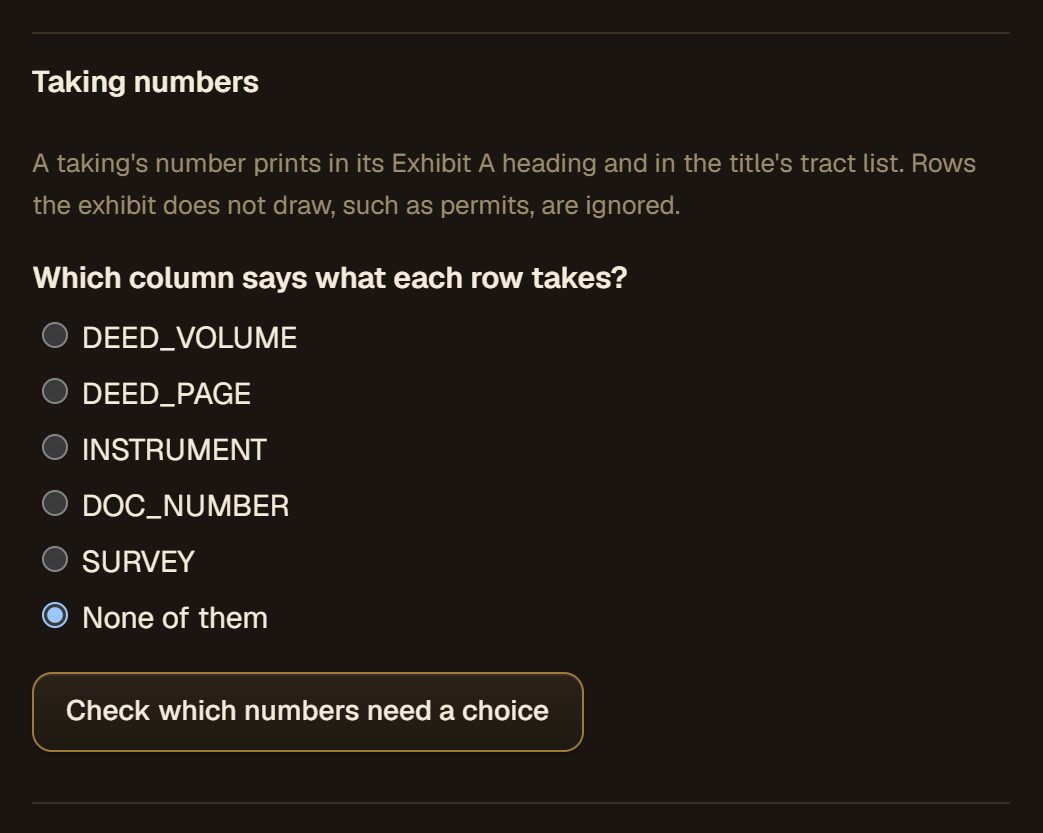
Roads and sites with their own number only when asked
The typical section
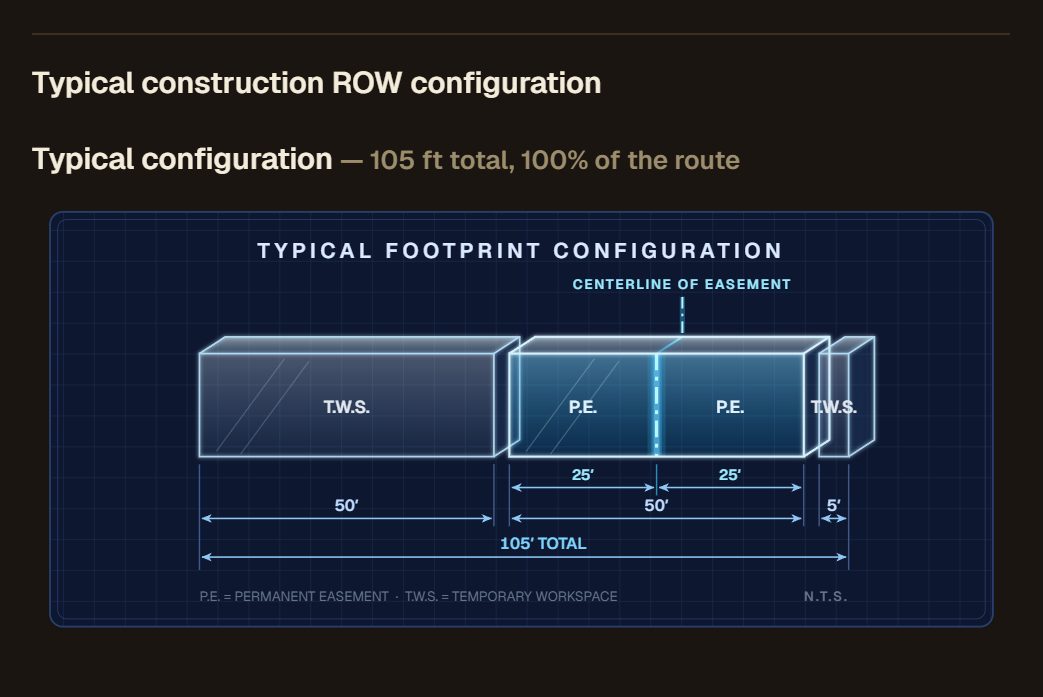
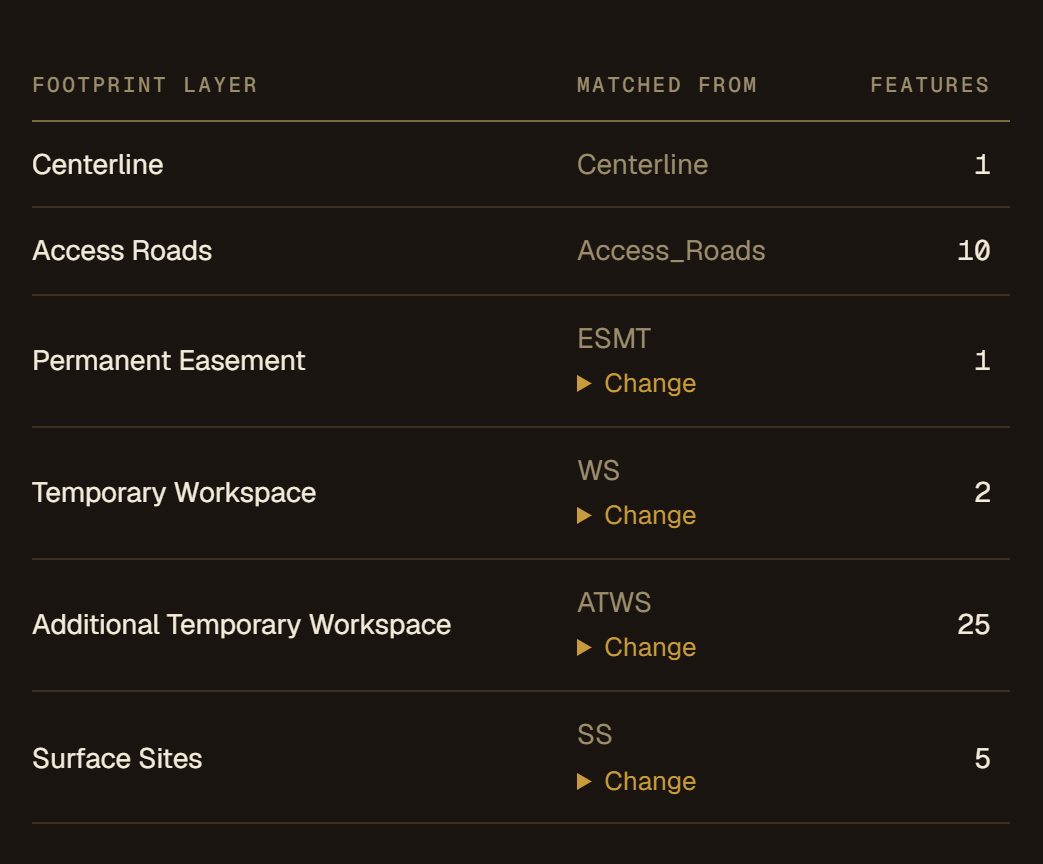
Your layers
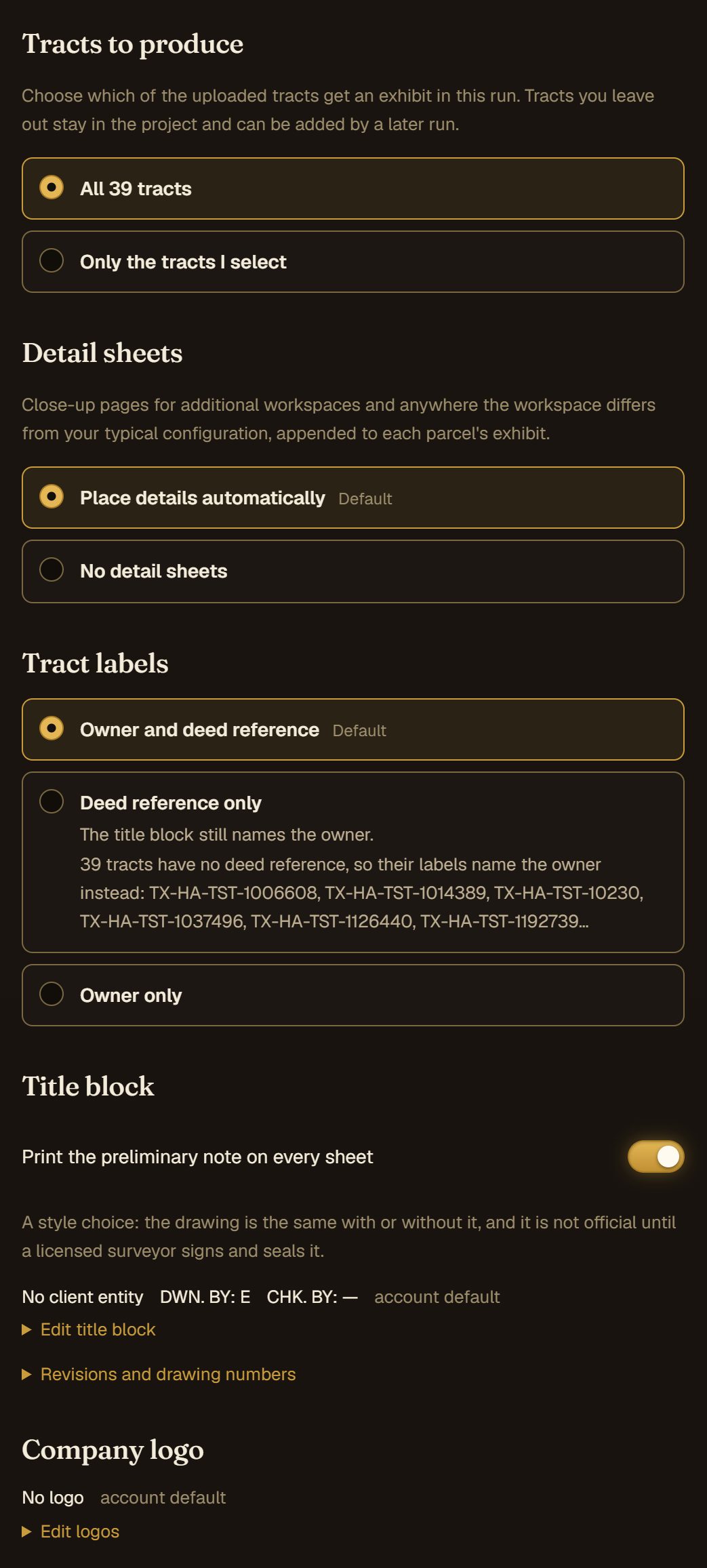
Tracts, sheets and the title block
- 1
Run every tract, or only the ones you pick. Tracts you leave out stay in the project for a later run.
- 2
Your firm, and who drew and checked the work. Set it once as your account default, or change it here for this delivery.
Preview, then run
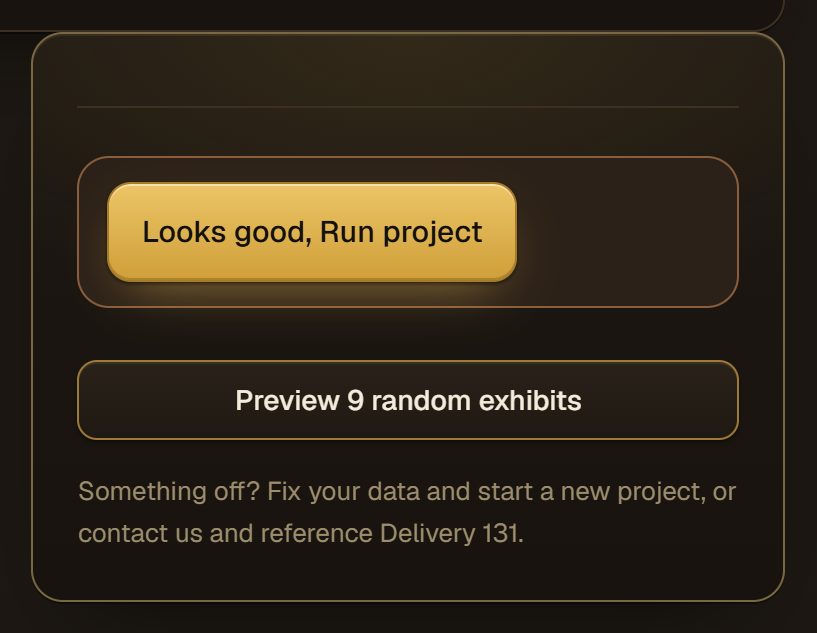
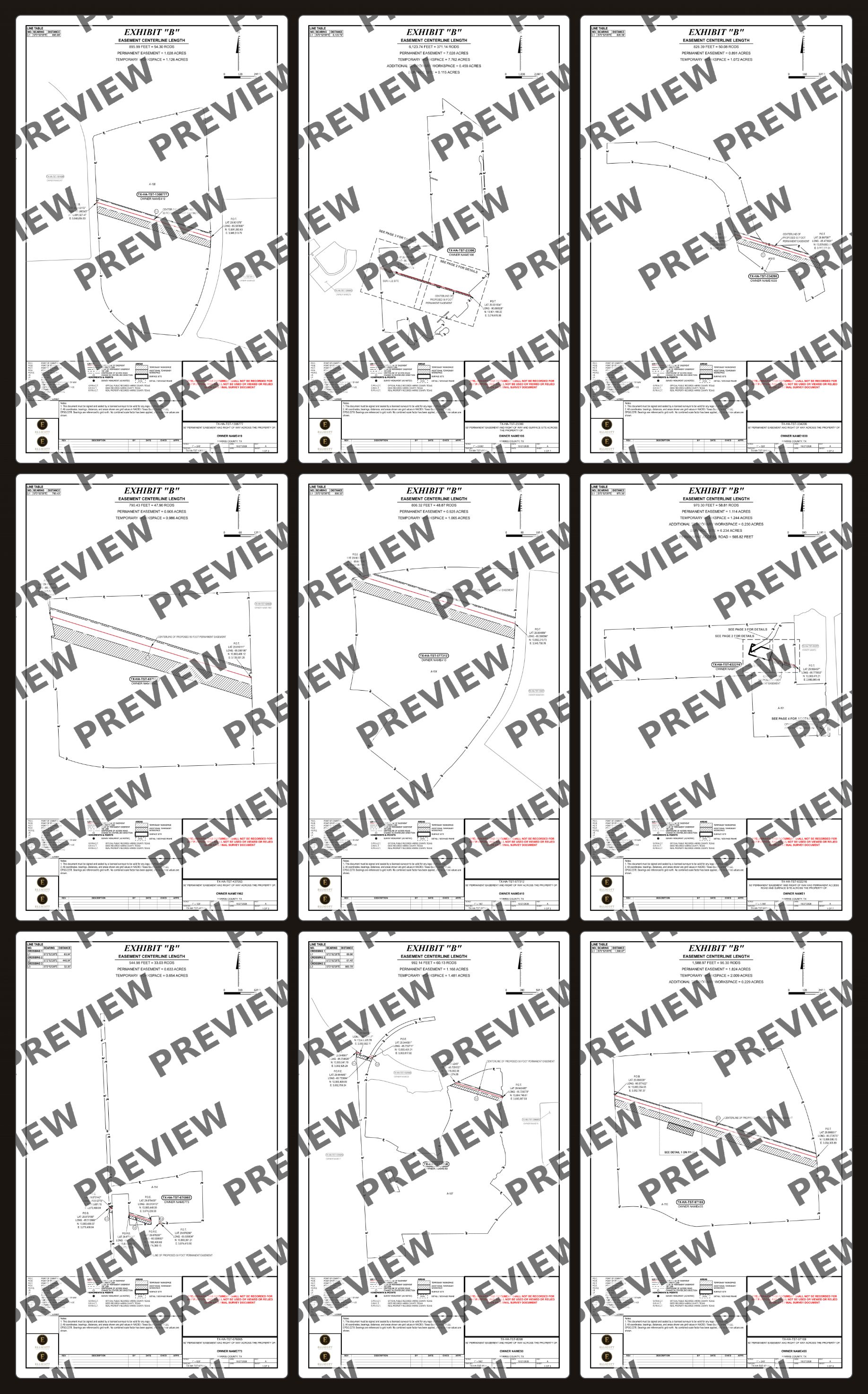
A preview draws a few exhibits so you can check the look before the whole delivery runs. Change an option and preview again as often as you like.
- 1
Draw a few exhibits first, to check the look before the full run.
- 2
Run the whole delivery.
What a preview looks like
Step 4 · Collect
Download your exhibits.
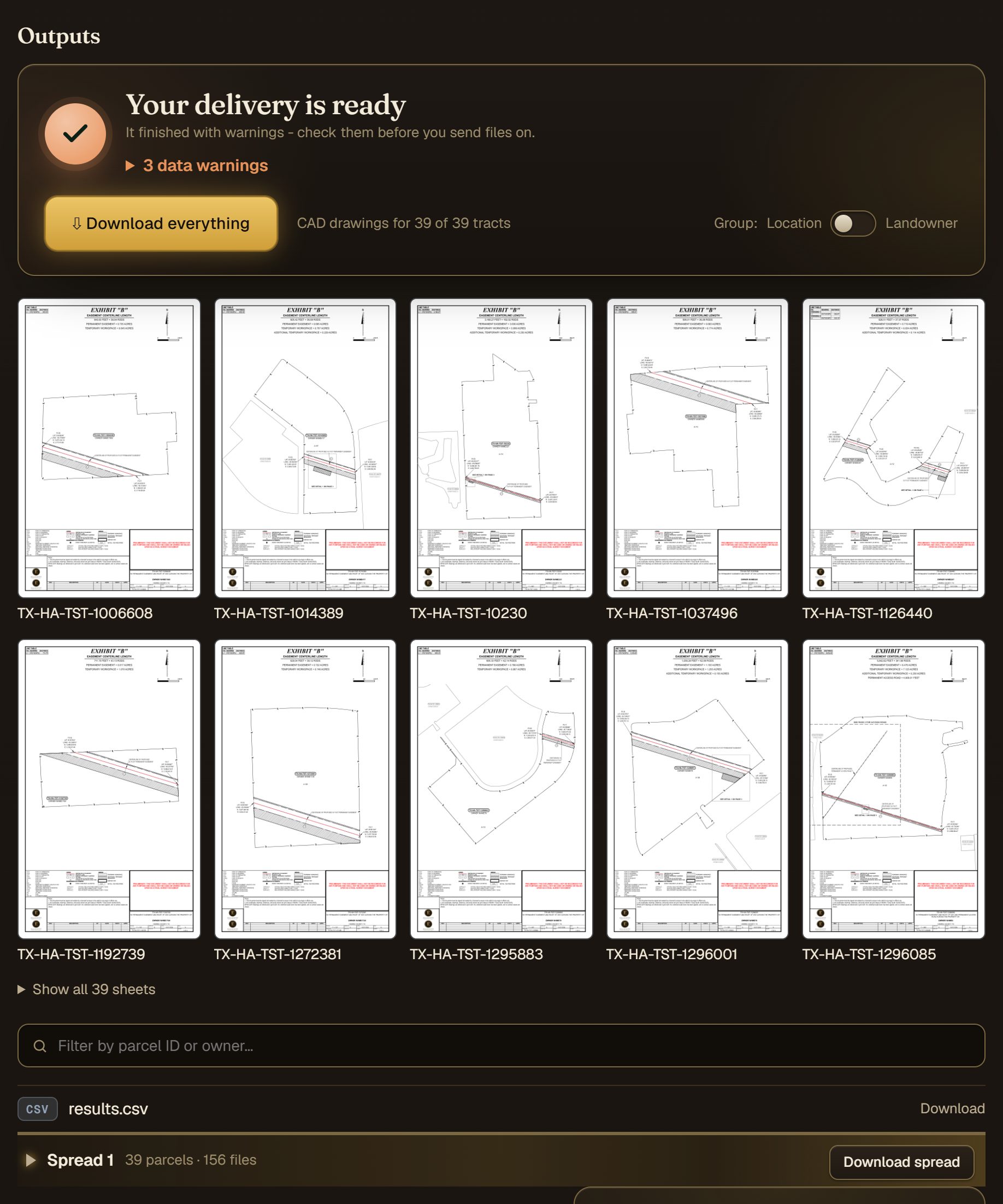
Each tract gets its exhibit PDF, a KMZ, shapefiles and CAD drawings. Take everything at once, or one spread, county or tract at a time.
- 1
Everything in one zip.
- 2
Find a tract by its ID or owner.

- 1
A whole spread at once.
- 2
One county within it.
- 3
Open a tract to see its files: the exhibit PDF, a KMZ, shapefiles and CAD drawings.
- 4
One tract's files in one zip.
A long run can email you when it is ready, so you do not have to wait on the page. Tick the box when you run, or make it your account default.
Revise and run again
- Spot a problem before you run? Replace the delivery's data from its page and the check runs again.
- Route changed after delivery? Add a new delivery to the same project with the tracts that changed.
Quick fixes
The data check says a layer is missing
Every delivery needs its parcels and the route. Name them as in the layer list above, or assign them on the review page if we did not recognise the names.
A layer was refused for its zone
Every layer must be in the same zone. Export the odd one out in your project's zone and upload again; we never convert it for you.
The point file was refused
Most often Northing and Easting are swapped. Put Northing first and upload again.
The Line List matched no tracts
Check that its ID column holds the same IDs as your parcels, and that the right column is picked on the review page.
Still stuck? Write to us with the message you see.